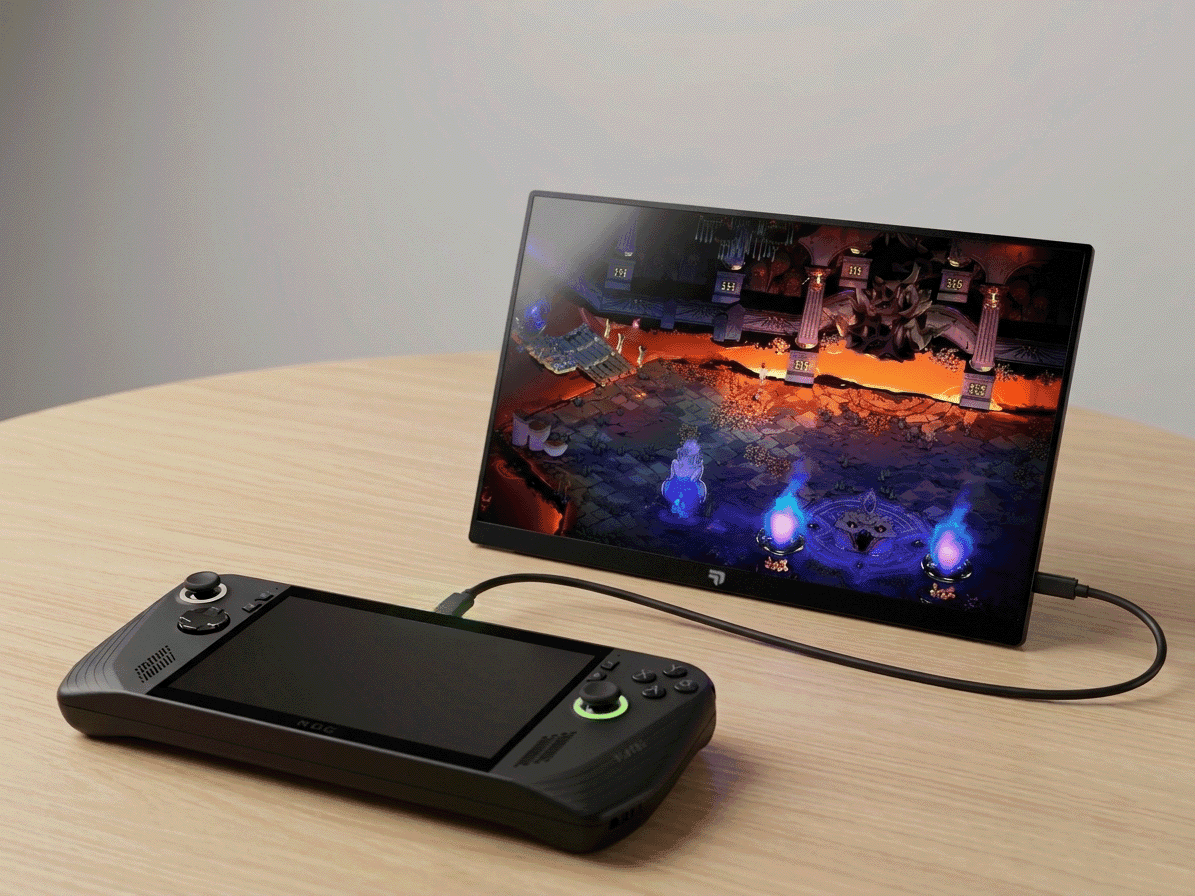
How to Connect ROG Ally to External Monitor (Step-by-Step Guide)
Complete guide to connecting your ROG Ally or Ally X to an external monitor. Learn about USB-C DisplayPort, refresh rates, and optimal display settings.

Complete guide to connecting your ROG Ally or Ally X to an external monitor. Learn about USB-C DisplayPort, refresh rates, and optimal display settings.
Want to experience your ROG Ally games on a bigger screen? Connecting an external monitor transforms your handheld into a full desktop gaming setup. Whether you have the original ROG Ally or the newer Ally X, this guide walks you through everything you need to know about external displays, from choosing the right cable to optimizing your display settings for the best gaming experience.
Before we begin, let's make sure you have everything required for a successful setup. The good news is that the ROG Ally makes external display connectivity incredibly simple through its USB-C port.
You'll need a USB-C to USB-C cable if your monitor supports USB-C DisplayPort Alt Mode, or a USB-C to HDMI adapter/cable if your monitor only has HDMI input. The ROG Ally and Ally X both support DisplayPort Alt Mode, which means video, audio, and power can all travel through a single USB-C cable. For the best experience, use a USB-C cable rated for at least 4K@60Hz or higher — this ensures you can hit the maximum refresh rate your monitor supports.
Any monitor with USB-C DisplayPort Alt Mode, HDMI, or DisplayPort will work with your ROG Ally. For gaming, look for monitors with at least 1080p resolution and ideally 120Hz or 144Hz refresh rate to match the Ally's capabilities. Portable monitors are perfect for maintaining portability while gaming on the go, while full-size monitors are ideal for a permanent desk setup.
The ROG Ally offers two primary ways to connect to an external display, each with its own advantages.
This is the cleanest and most efficient connection method. Simply plug a USB-C to USB-C cable from your ROG Ally's top USB-C port to your monitor's USB-C input. The Ally will automatically detect the display and can even power compatible monitors directly. This method supports up to 144Hz at 1080p and 1440p resolutions. The single-cable solution also means less clutter and easier portability.
If your monitor doesn't have USB-C input, use a USB-C to HDMI adapter or cable. The ROG Ally supports HDMI 2.0 output, which allows for 1080p@120Hz or 4K@60Hz. Note that when using HDMI, you'll need separate power for your monitor, and the Ally won't be able to power it directly like it can with USB-C DisplayPort.
Follow these steps to connect your ROG Ally to an external monitor and optimize your settings.
Connect your cable from the ROG Ally's USB-C port to your monitor. If you're using USB-C DisplayPort, the monitor should power on automatically. For HDMI connections, make sure your monitor is powered separately and set to the correct input source.
Windows should automatically detect the external display within a few seconds. You'll see your desktop extend to the new display. If it doesn't detect automatically, press Win + P and select 'Extend' or 'Duplicate' depending on your preference. For gaming, 'Duplicate' mode (mirroring) or setting the external monitor as the primary display works best.
Right-click on your desktop and select 'Display settings'. Here you can set your preferred resolution and refresh rate. For the best gaming experience, match your monitor's native resolution (usually 1080p or 1440p) and set the refresh rate to its maximum (120Hz or 144Hz if supported). You can also choose whether to extend or duplicate your display.
Navigate to Settings > System > Display > Advanced display. Select your external monitor and set the refresh rate to 144Hz (or your monitor's maximum). The ROG Ally can output at 144Hz over USB-C DisplayPort, so make sure this setting is enabled for the smoothest gaming experience.
To get the most out of your ROG Ally when gaming on an external monitor, consider these optimization tips.
When connected to an external monitor via USB-C, your ROG Ally will draw power to drive the display. To preserve battery life during extended gaming sessions, connect the Ally's charging cable or use a monitor that supports USB Power Delivery to charge the Ally while gaming. Alternatively, if your monitor has an auxiliary power input, power it separately to reduce strain on the Ally's battery.
Use the Armoury Crate software to enable Performance or Turbo mode when gaming on an external display. This ensures your ROG Ally delivers maximum frame rates to take advantage of your monitor's high refresh rate. You can access Armoury Crate by pressing the Armoury Crate button or opening it from the system tray.
If you're experiencing performance issues, consider lowering the in-game resolution while keeping the refresh rate high. Many games will look great at 1080p on a 1440p monitor, and the performance gains can be significant. The ROG Ally's AMD FSR (FidelityFX Super Resolution) can also help upscale lower resolutions for better visual quality.
If you encounter issues connecting your ROG Ally to an external monitor, try these solutions.
First, ensure your cable supports DisplayPort Alt Mode (for USB-C) or is HDMI 2.0 compliant. Try pressing Win + P and manually selecting 'Extend' or 'Duplicate'. If the monitor still isn't detected, restart your ROG Ally with the cable connected. You can also try updating your GPU drivers through Windows Update or AMD's software.
Check that your cable supports high refresh rates (look for USB-C cables rated for 4K@60Hz or higher, or HDMI 2.0). Then navigate to Display Settings > Advanced display and manually select 144Hz. Some monitors require you to enable high refresh rate mode in the monitor's OSD (on-screen display) menu as well.
If you're seeing a blurry or stretched image, ensure your display is set to its native resolution in Windows display settings. For USB-C connections, try a different cable as poor-quality cables can cause signal degradation. Make sure your monitor's aspect ratio matches the content — 16:10 monitors work best with 16:10 content, while 16:9 monitors work best with 16:9 content.
Connecting your ROG Ally to an external monitor is straightforward and transforms your gaming experience. The single USB-C cable solution makes it incredibly convenient to go from handheld to desktop gaming in seconds. Whether you're at home, traveling, or at a LAN party, an external monitor gives you the screen real estate and viewing angles you need for the best gaming experience. Just remember to optimize your settings for refresh rate and performance mode to get the most out of your setup.
Check out our device-specific guides and the Flow V1 monitor