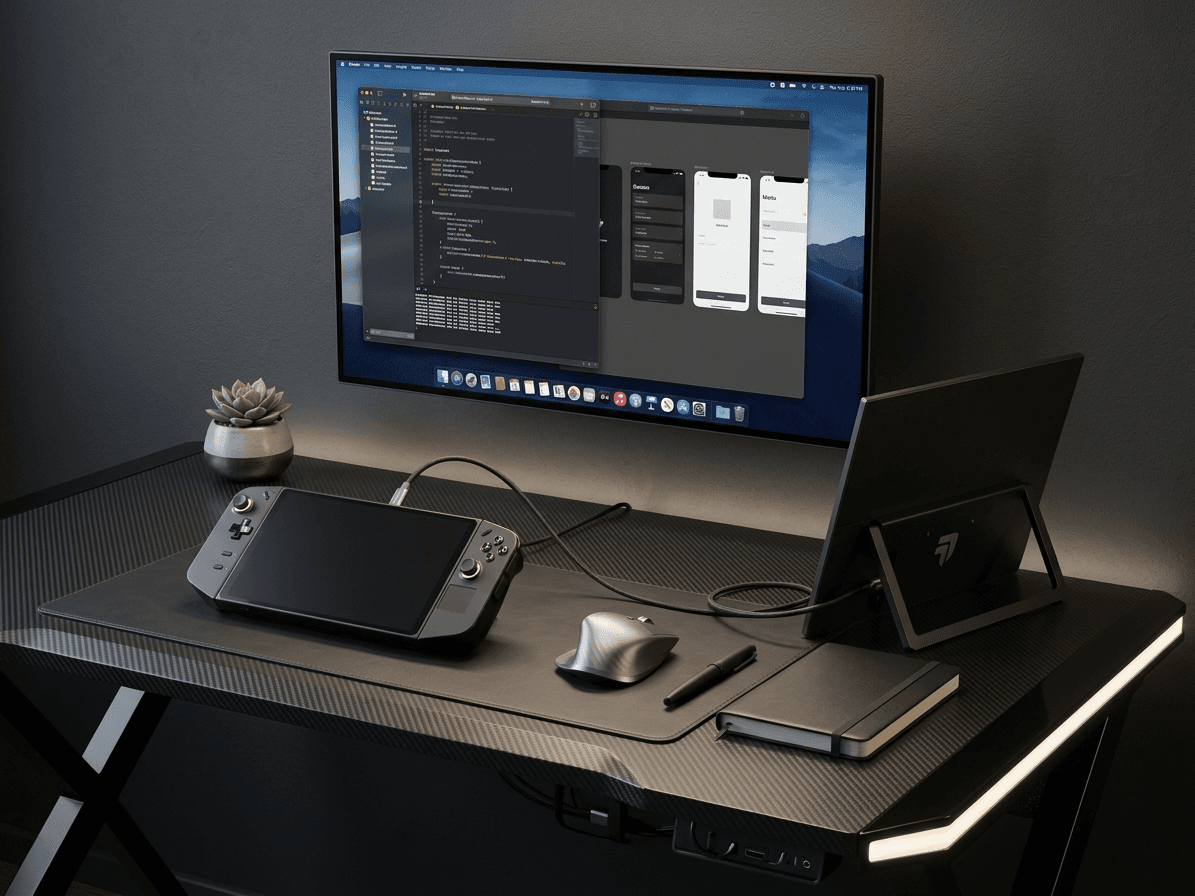
Legion Go External Display Setup: Everything You Need to Know
Complete guide to connecting your Lenovo Legion Go to an external monitor. Learn about 144Hz support, USB-C DisplayPort, and optimal gaming settings.
The Lenovo Legion Go is one of the most powerful handheld gaming PCs on the market, with its large 8.8-inch display and detachable controllers. But when you want to game on an even bigger screen, connecting an external monitor unlocks the Legion Go's full potential. This guide covers everything from connection methods to performance optimization, helping you set up the perfect external display for your Legion Go.
The Legion Go comes with impressive display output capabilities that make it ideal for external monitor use. Understanding what the Legion Go can output helps you choose the right monitor and settings.
The Legion Go supports USB-C DisplayPort Alt Mode and can output up to 4K@60Hz or 1440p@120Hz. Importantly, the Legion Go can output at 144Hz at 1080p, making it perfect for high refresh rate gaming monitors. The internal display is 8.8 inches at 2560×1600 (16:10 aspect ratio) with a 144Hz refresh rate, so the Legion Go is already optimized for high refresh rate gaming.
One of the Legion Go's unique features is its detachable controllers. When connected to an external monitor, you can detach the controllers and use them wirelessly, creating a console-like gaming experience. This makes the Legion Go particularly well-suited for desk setups with external displays.
Setting up your Legion Go with an external monitor is straightforward, but having the right equipment ensures the best experience.
For the simplest setup, use a USB-C to USB-C cable if your monitor supports USB-C DisplayPort Alt Mode. This allows a single cable to carry video, audio, and even power. For monitors with only HDMI input, you'll need a USB-C to HDMI adapter or cable. Make sure your cable is rated for at least 4K@60Hz or 1440p@144Hz to take full advantage of the Legion Go's capabilities. High-quality cables are essential for stable 144Hz output.
Consider a USB-C dock or hub to expand connectivity. This allows you to connect your monitor, charge the Legion Go, and use additional peripherals like a keyboard, mouse, or external storage all through a single connection. A good dock can transform your Legion Go into a full desktop gaming setup in seconds.
Follow these steps to connect your Legion Go to an external monitor and configure it for optimal performance.
Plug your USB-C cable from the Legion Go's USB-C port (located on the top) to your monitor. If using an HDMI connection, connect the USB-C to HDMI adapter to the Legion Go first, then the HDMI cable to your monitor. Make sure your monitor is powered on and set to the correct input source. The Legion Go should automatically detect the external display within a few seconds.
Right-click on the Windows desktop and select 'Display settings'. You'll see both displays listed — the internal Legion Go screen and your external monitor. You can choose to extend or duplicate your display. For gaming, duplicating (mirroring) usually works best. You can also set the external monitor as your primary display if you want to use only the big screen while gaming.
In Display settings, scroll down and click 'Advanced display'. Select your external monitor and set the refresh rate to 144Hz (or your monitor's maximum). This is crucial for getting the smoothest gaming experience. The Legion Go can output 144Hz at 1080p, so make sure this setting is enabled to take full advantage of high refresh rate monitors.
Set your monitor's resolution to its native resolution for the best image quality. Common options include 1920×1080 (Full HD), 2560×1440 (QHD), or 1920×1200 (16:10). The Legion Go can handle all of these resolutions, but higher resolutions will be more demanding on the GPU and may require lowering in-game settings for optimal performance.
To get the most out of your Legion Go when gaming on an external display, follow these optimization tips.
The Legion Go has multiple power modes accessible through the Legion Space software. When gaming on an external monitor, use Performance or Custom mode with higher TDP limits (up to 30W) to maximize frame rates. This ensures you can hit 144fps in supported games and take full advantage of your high refresh rate monitor.
Driving an external display consumes additional power. For extended gaming sessions, keep your Legion Go plugged into its charger. If your monitor supports USB Power Delivery, it may be able to charge the Legion Go, but check the wattage to ensure it can provide sufficient power (the Legion Go charger is 65W).
Adjust in-game graphics settings to balance visual quality with frame rate. For 144Hz gaming, aim for at least 90-144 fps. You may need to lower settings like shadows, anti-aliasing, or resolution scaling to hit these frame rates. The Legion Go's AMD FSR (FidelityFX Super Resolution) can help by rendering at a lower resolution and upscaling for better performance.
One of the Legion Go's standout features is its detachable controllers, which work brilliantly with external monitor setups.
The Legion Go's right controller can be used as a standalone mouse in FPS mode. Detach the right controller and prop up the Legion Go with the built-in kickstand or set it aside. Connect your external monitor and use the controller as a mouse for FPS games. This creates a unique gaming experience that combines the precision of mouse control with the portability of a handheld.
Detach both controllers and use them wirelessly while gaming on your external monitor. This creates a console-like experience where you can sit back comfortably while gaming on the big screen. The controllers connect via Bluetooth and have excellent range, allowing you to game from across the room if desired.
If you encounter problems with your external monitor setup, try these solutions.
Ensure your cable supports DisplayPort Alt Mode (for USB-C) or is HDMI 2.0 compliant. Try pressing Win + P and manually selecting 'Extend' or 'Duplicate'. Restart the Legion Go with the cable connected. Update your graphics drivers through Windows Update or AMD's driver software. Some users have reported that certain USB-C cables don't work well — try a different cable if issues persist.
If your monitor is locked at 60Hz despite supporting 144Hz, check your cable quality — it must be rated for high refresh rates. Navigate to Display Settings > Advanced display and manually select 144Hz. Also check your monitor's on-screen display (OSD) menu to ensure high refresh rate mode is enabled. Some monitors require you to enable 'gaming mode' or similar settings to unlock higher refresh rates.
If you're experiencing stuttering or low frame rates, make sure you're using Performance or Custom power mode in Legion Space. Lower in-game graphics settings, especially resolution, to improve frame rates. Close background applications that may be consuming resources. Consider using AMD FSR in games that support it to boost performance while maintaining visual quality.
The Legion Go's combination of powerful hardware, detachable controllers, and high refresh rate capabilities makes it exceptional for external monitor gaming. Whether you're creating a permanent desk setup or a portable gaming station, the Legion Go delivers desktop-class gaming performance in a handheld form factor. With the right monitor and optimized settings, you can enjoy smooth 144Hz gaming with the flexibility to detach controllers and game however you prefer. The setup process is straightforward, and the results are impressive — transforming your Legion Go from a portable handheld into a full gaming powerhouse.
Check out our device-specific guides and the Flow V1 monitor